FileCodeBox-Lite
FileCodeBox-Lite
Share texts and files anonymously with passwords, just like picking up a package
Join our QQ group: 739673698

---
[Simplified Chinese](./readme.md) | [English](./readme_en.md)
## Main Features
- [x] **Lightweight:** Built with FastAPI + Sqlite3 + Vue2 + ElementUI
- [x] **Easy Upload:** Support copy-paste and drag-and-drop selection
- [x] **Various Types:** Supports text and file sharing
- [x] **Brute-force Protection:** Error limit on passwords
- [x] **Abuse Prevention:** IP limits on upload attempts
- [x] **Password Sharing:** Random password for accessing files, customizable access counts, and expiration
- [x] **Internationalization:** Supports both Chinese and English
- [x] **Anonymous Sharing:** No need for registration or login
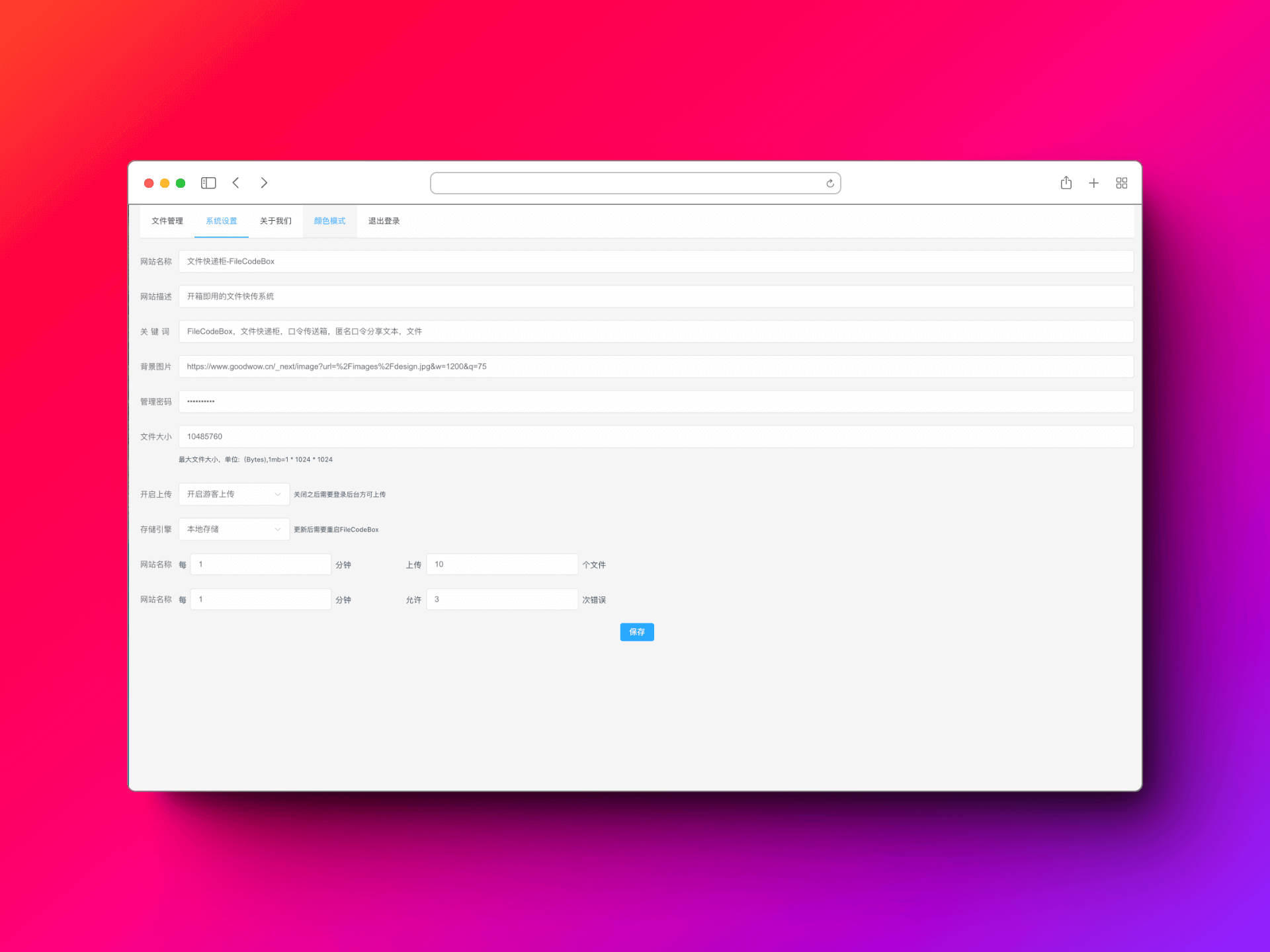
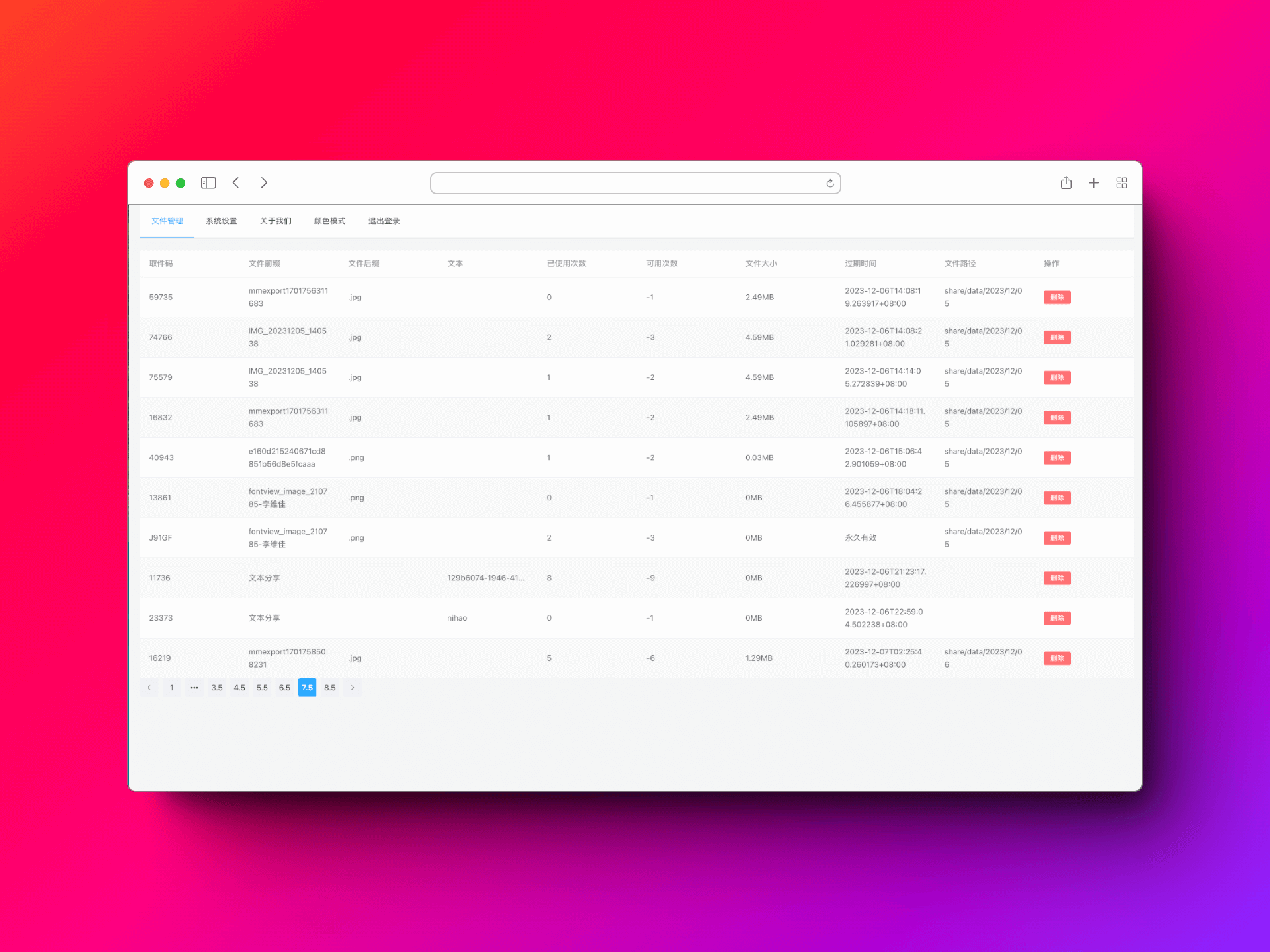
- [x] **Management Panel:** View and delete files
- [x] **One-Click Deployment:** Support for Docker deployment
- [x] **Free Extension:** Supports S3 protocol and local file stream; can add new storage engines in storage file as needed
- [x] **Simple and Clear:** Great for beginners
- [x] **Terminal Download:** Terminal command `wget https://share.lanol.cn/share/select?code=83432`
## Deployment Methods
### 1Panel One-Click Deployment
Go to Application Store -> Utilities -> FileCodeBox
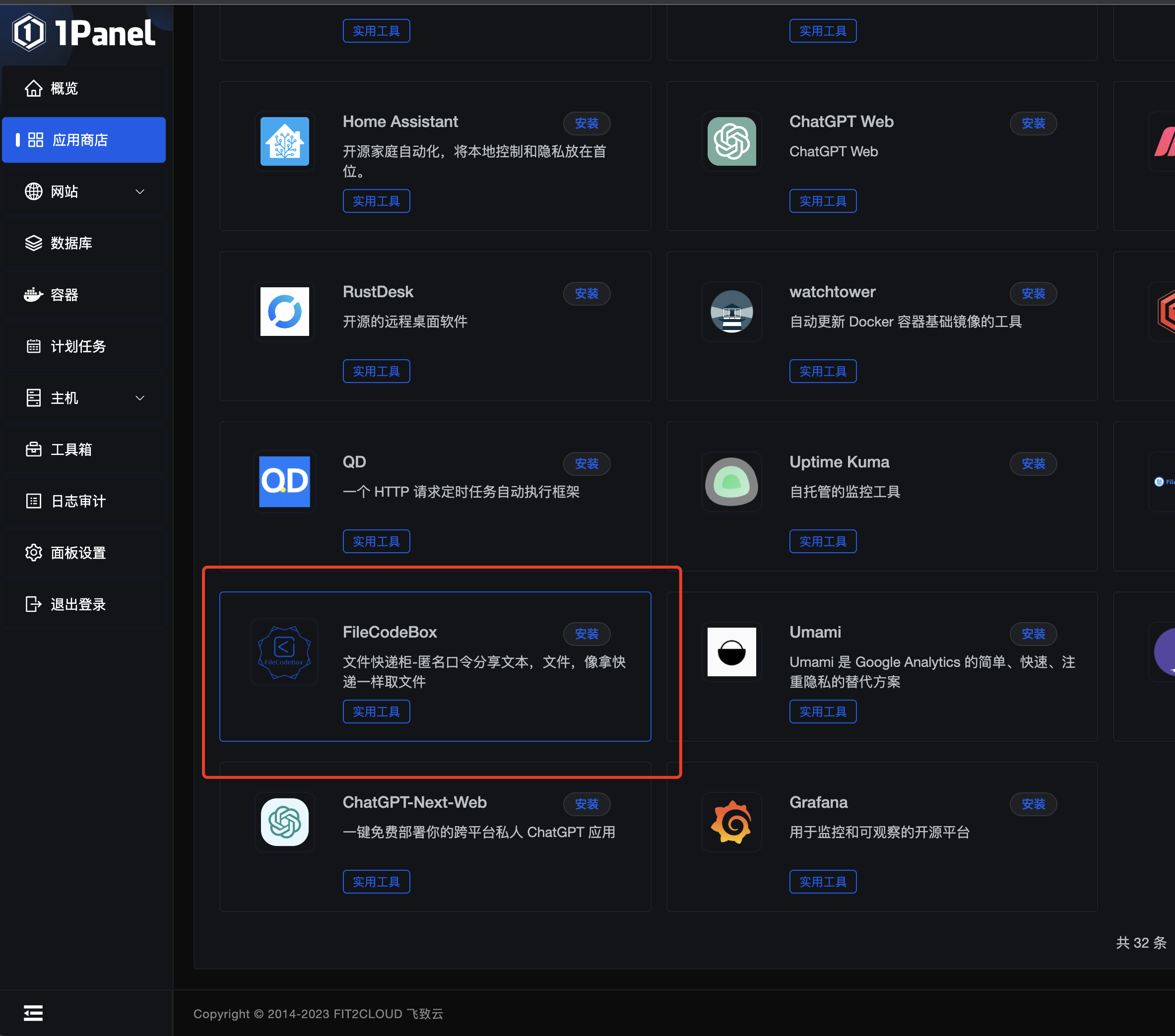
**Update:** Container -> Select -> More -> Edit -> Force Pull Image -> Confirm
### One-Click Deployment in BaoTa Application Store
Current version is 1.6

### Docker One-Click Deployment
**Version 2.0**, work in progress
Default Info
Backend Address: `/#/admin`
Admin Password: `FileCodeBox2023`
*Supports AMD & ARM*
**One-Click Install**
```bash
docker run -d --restart=always -p 12345:12345 -v /opt/FileCodeBox/:/app/data --name filecodebox lanol/filecodebox:beta
```
**One-Click Update**
```bash
docker pull lanol/filecodebox:beta && docker stop filecodebox && docker rm filecodebox && docker run -d --restart=always -p 12345:12345 -v /opt/FileCodeBox/:/app/data --name filecodebox lanol/filecodebox:beta
```
**Version 1.6 AMD**
```bash
docker run -d --restart=always -p 12345:12345 -v /opt/FileCodeBox/:/app/data --name filecodebox lanol/filecodebox:latest
```
**Version 1.6 ARM**
```bash
docker run -d --restart=always -p 12345:12345 -v /opt/FileCodeBox/:/app/data --name filecodebox lanol/filecodebox:arm
```
### Update Methods
```bash
// Update the container
docker pull lanol/filecodebox:beta
// Stop and remove the container
docker stop filecodebox && docker rm filecodebox
// Re-run the container
docker run -d --restart=always -p 12345:12345 -v /opt/FileCodeBox/:/app/data --name filecodebox lanol/filecodebox:latest
```
### Notes on Version 1.6
This version has significant changes. If issues occur, try clearing the /opt/FileCodeBox directory. Feel free to provide feedback. **Note:** For first-time installations, check Docker logs for the initial password and backend address, as shown below:
```bash
docker logs filecodebox
```
**Backend Local File List**: Move server files to the /opt/FileCodeBox/data/locals directory for display.
## Preview
### Example Site
[https://share.lanol.cn](https://share.lanol.cn)
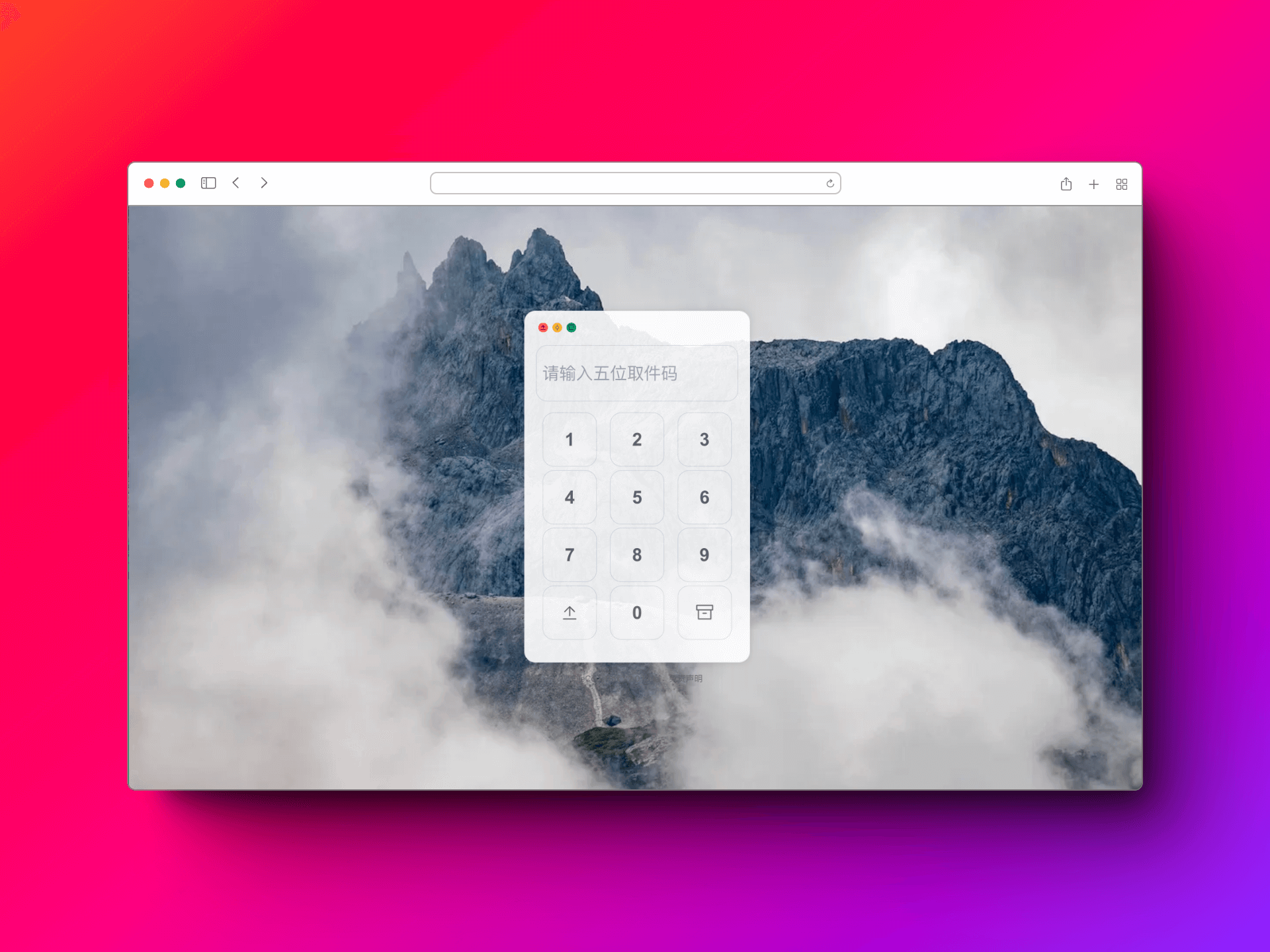
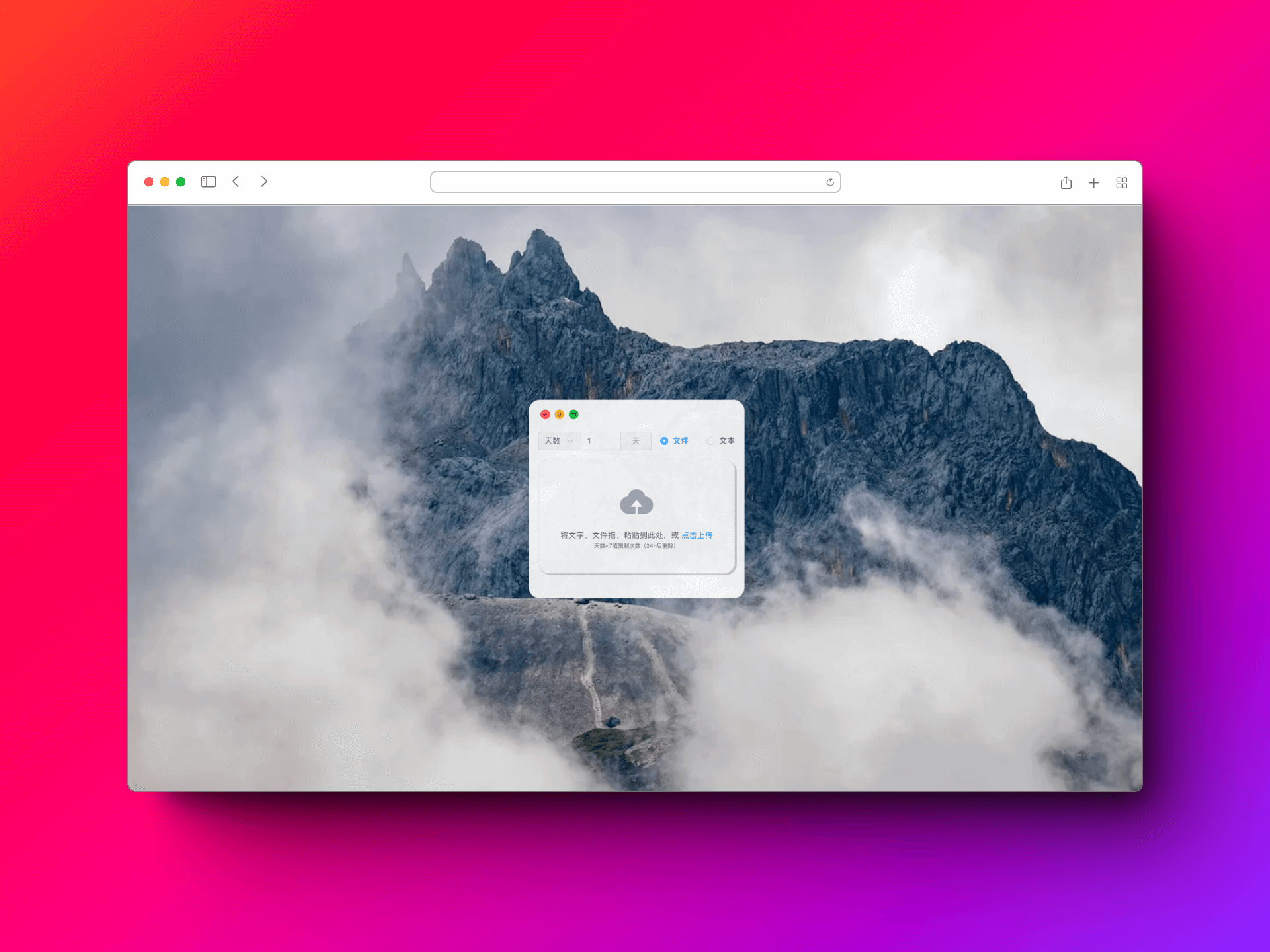
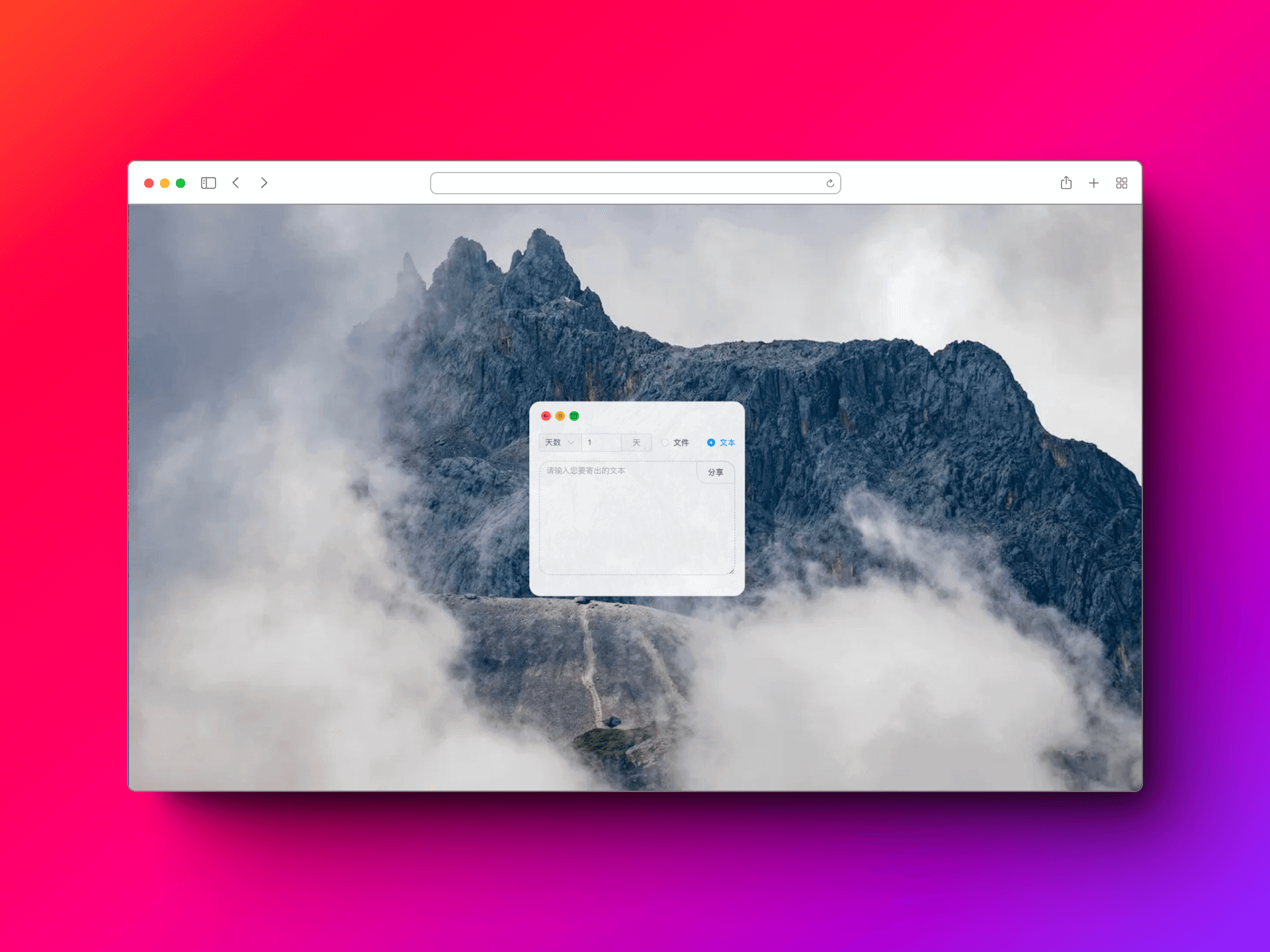
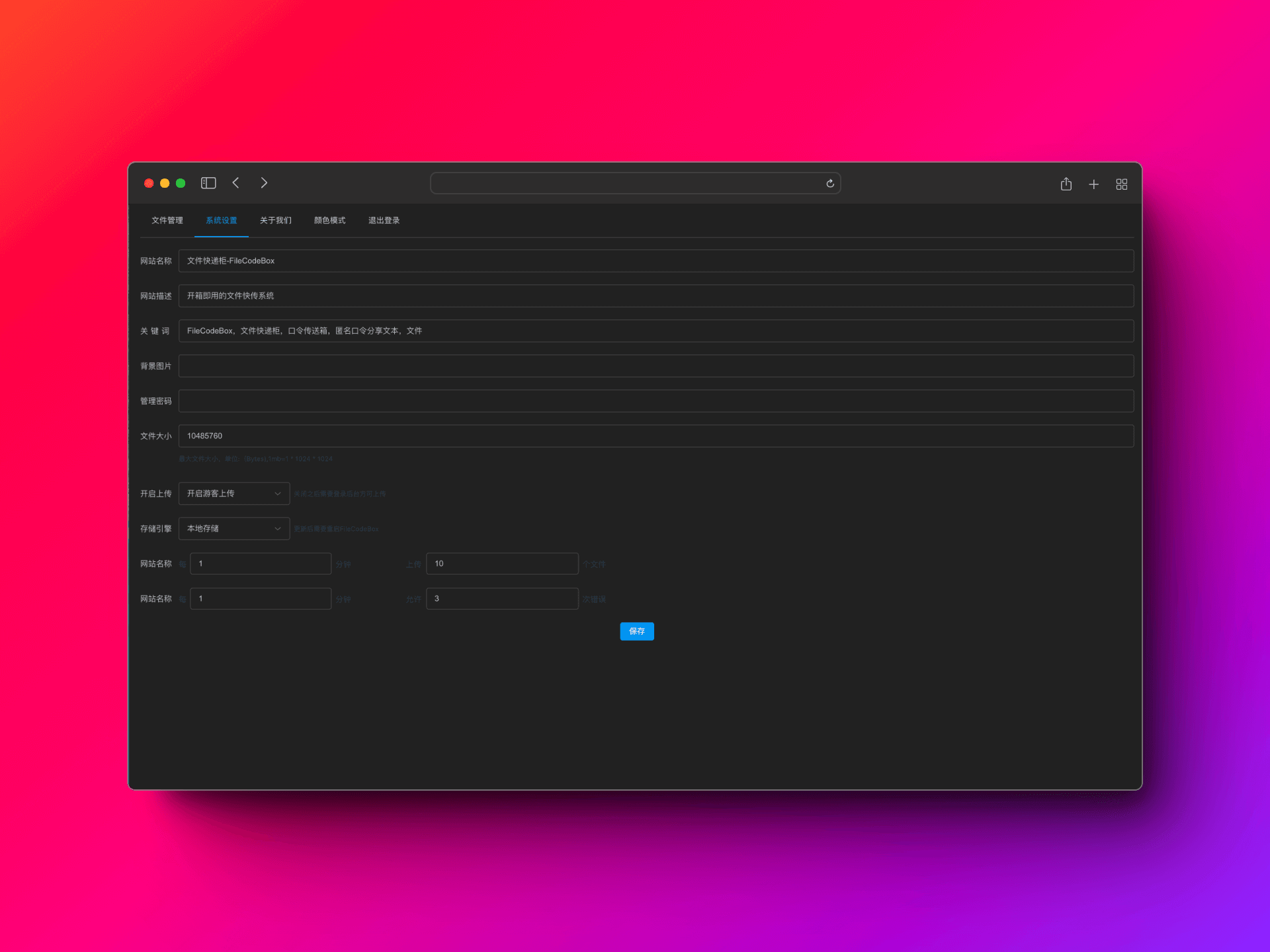
### Screenshots